pyradmon.py is a little python script I need running to get data from my Geiger counter (GMC-320) to its data showing webpage (Radmon.org).
The script has to always run, also after reboots, outages, changes to the system or the script itself, and it has to be restarted if it fails.
On Ubuntu 18 and many other systems a system called Systemd is in use to facilitate this.
To get the script running in systemd do the following:
Create a file called "radmon.service" in /etc/systemd/system .
Then do:
And if needed do:
That's it.
Showing posts with label GMC 320. Show all posts
Showing posts with label GMC 320. Show all posts
Tuesday, May 21, 2019


Thursday, January 16, 2014
GMC-320 Geiger counter online with Ubuntu
Recently I bought a Geiger Muller counter from GQ electronics and connected it to my Ubuntu 12.04 and Ubuntu 13.10 laptop with the supplied USB cable.
With the terminal command dmesg I saw that the device was recognized correctly.
I would love to see graphics of the log and remote view the data via the internet but the provided software only runs on an expensive disk operating system called "Microsoft Windows".
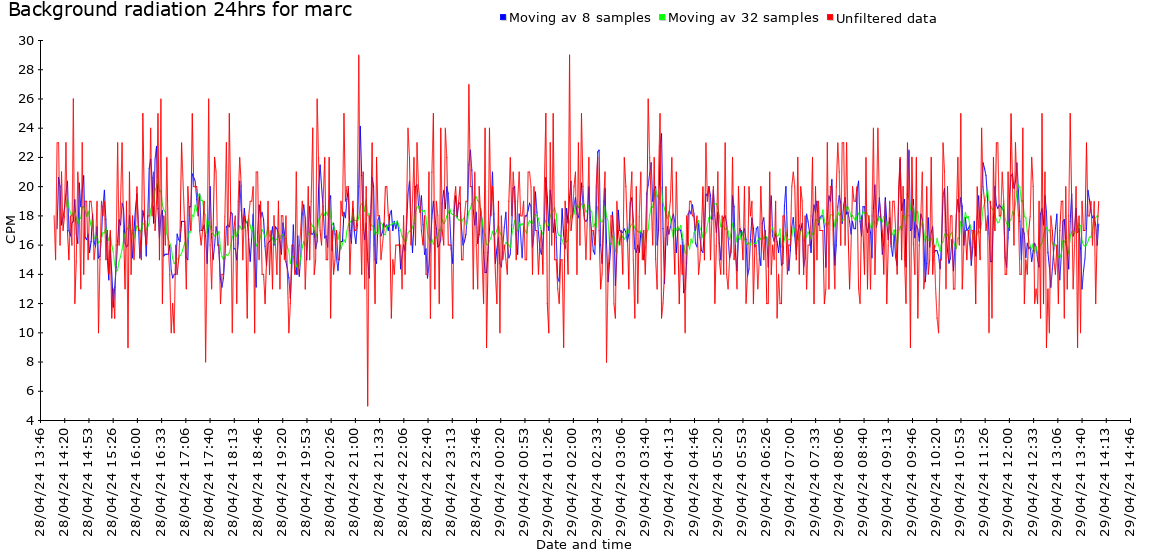
But luckily there is a free Linux alternative. This will work on any Linux machine but the instructions below are tested on Ubuntu. Following the instructions below will result in a nice dot on a map and access to all kind of log graphics.
 I went to www.radmon.org and downloaded pyradmon.py.
Register at: http://radmon.org/index.php/register
Download, unzip and save pyradmon.py to your home folder. Make the file executable, add your username to the group dialout and reboot.
Run in terminal:
sudo chmod +x pyradmon.py
sudo apt-get install python-serial
sudo adduser yourusername dialout
sudo reboot
(Sure it can be done other ways but a reboot is the most simple and I like simple.)
Log back in and open a terminal.
Run pyradmon:
sudo python -u pyradmon.py
The pyradmon script will generate a configuration file in the same directory for you and stops.
Now edit the configuration file.(config.txt)
Fill in your username and password. (Same as the one registered at the site.)
Usually the serial port will be /dev/ttyUSB0 unless you have other devices connected.
Set the baud rate suitable for your counter, e.g. 2400 for MyGeiger.
Set the protocol to gmc. Save the file.
Run pyradmon.py in terminal:
sudo python -u pyradmon.py
To run python as a separate process use:
sudo nohup python -u pyradmon.py &
Now this is all fine until you plug out the usb cable of the Geiger counter and plug it back in. It can become another USB port and the config.txt will be wrong.
You need to create a new UDEV rule to make sure the config.txt always points to the correct port.
 |
| GMC-320: A,B and Gamma radiation detector with on-board logging and viewing of data capabilities, a 'clicking' sound and USB connector. |
I would love to see graphics of the log and remote view the data via the internet but the provided software only runs on an expensive disk operating system called "Microsoft Windows".
But luckily there is a free Linux alternative. This will work on any Linux machine but the instructions below are tested on Ubuntu. Following the instructions below will result in a nice dot on a map and access to all kind of log graphics.
Register at: http://radmon.org/index.php/register
Download, unzip and save pyradmon.py to your home folder. Make the file executable, add your username to the group dialout and reboot.
Run in terminal:
sudo chmod +x pyradmon.py
sudo apt-get install python-serial
sudo adduser yourusername dialout
sudo reboot
(Sure it can be done other ways but a reboot is the most simple and I like simple.)
Log back in and open a terminal.
Run pyradmon:
sudo python -u pyradmon.py
The pyradmon script will generate a configuration file in the same directory for you and stops.
Now edit the configuration file.(config.txt)
Fill in your username and password. (Same as the one registered at the site.)
Usually the serial port will be /dev/ttyUSB0 unless you have other devices connected.
Set the baud rate suitable for your counter, e.g. 2400 for MyGeiger.
Set the protocol to gmc. Save the file.
Run pyradmon.py in terminal:
sudo python -u pyradmon.py
To run python as a separate process use:
sudo nohup python -u pyradmon.py &
Now this is all fine until you plug out the usb cable of the Geiger counter and plug it back in. It can become another USB port and the config.txt will be wrong.
You need to create a new UDEV rule to make sure the config.txt always points to the correct port.
udevadm info -a -p $(udevadm info -q path -n /dev/ttyUSB0)
Go to /etc/udev/rules.d and create a file named "geiger.rules"
Edit the file and put the following line in it.
SUBSYSTEM=="tty", ATTRS{idVendor}=="067b", ATTRS{product}=="USB-Serial Controller", ATTRS{idProduct}=="2303", SYMLINK+="geiger"
After reboot a device called @geiger will be created in /dev
Edit the pyradmon config.txt and set the serial port to /dev/geiger
Go to /etc/udev/rules.d and create a file named "geiger.rules"
Edit the file and put the following line in it.
SUBSYSTEM=="tty", ATTRS{idVendor}=="067b", ATTRS{product}=="USB-Serial Controller", ATTRS{idProduct}=="2303", SYMLINK+="geiger"
After reboot a device called @geiger will be created in /dev
Edit the pyradmon config.txt and set the serial port to /dev/geiger
For more information about monitoring radiation with your Geiger counter go to: www.radmon.org
Subscribe to:
Posts (Atom)