Wednesday, May 12, 2010

Midnight commander on Ubuntu server 8.04 LTE

Midnight Commander is not present after the initial install of Ubuntu server 8.04 LTE. Also installing with sudo apt-get install mc does not work.

To install MC you will need to install a key and add a repository.

To install the key type in terminal:
sudo apt-key adv --keyserver keyserver.ubuntu.com --recv-keys F82FBD49

To add the extra repository edit /etc/apt/sources.list and add the following two lines:
deb http://ppa.launchpad.net/zyv/ppa/ubuntu YOUR_DISTRO main
deb-src http://ppa.launchpad.net/zyv/ppa/ubuntu YOUR_DISTRO main

(As editor nano could be used.)

Now update with:
sudo apt-get update

Midnight Commander can now be installed with:
sudo apt-get install mc

Friday, April 16, 2010

Huawei E180 HSPA dongle on Ubuntu 9.10 Netbook Remix

There are many ways to do it wrong and this is the correct procedure to get a working Huawei E180 HSPA dongle with your Ubuntu 9.10 Netbook Remix netbook.

- Insert the dongle, then turn on the computer.
- Right-click the network icon and go to Edit Connections.


- Select Mobile Broadband Connection and click Add to set up a new Mobile Broadband Connection.


- The dongle is recognised as HUAWEI Technology HUAWEI Mobile, just press Forward.
- A country list appears, choose Netherlands and press Forward.
- A provider list appears, I tested with KPN Mobile and press Forward.
- A billing plan has to be chosen but there is only the Default choice, just press Forward.
- A resume of the settings appear, just press Apply.


- A settings screen appears, don't change anything just press Apply.


Now everything is set up.

- Click the network icon and click the Mobile Broadband called KPN Mobile Default 1

- A PIN is needed. (Only once during install) Give the correct PIN and press enter. (The PIN is saved.)

Wait a few seconds and you have internet.

No extra drivers or software need to be installed and everything works out of the box.

Saturday, October 31, 2009

Maxtor 6L250R0 234 GB (30515 Cyl 255 H 63 Sec)

I have this Hard disk that I need for an old MS-DOS system. 

No support site, no sticker on the drive. 

 Finally after a long search. Google saves the day and points me to a backup of a logfile deep in the sediments of the interwebs. I found an old logfile.txt and from it I could extract the needed data. 

 Maxtor 6L250R0 234 GB IDE Name: Maxtor 6L250R0 

 Kind of drive:  Physical drive 250GB Capacity, UDMA/133, 7200RPM, 16MB Cache, 3.5in Hard Drive, 8.5 ms average seek time, 4.17 ms average latency, IDE interface. 

 Geometry: 30515 Cylinders * 255 Heads * 63 Sectors 

 LBA sectors: 490,223,475 (234 GB) 

 Kind of access: LBA mode

Monday, July 06, 2009

Citrix ICA client on Ubuntu 9.04


1 Go to: http://www.citrix.com to download and install the linux ICA client/Citrix Receiver.
(http://www.citrix.com/English/ss/downloads/details.asp?downloadId=3323&productId=186&c1=sot2755&c2=ost1349860)
Run setupwfc.

2 Install usertrust certificate.
(Needed by the ICA client for encryption of the ICA stream.)
Copy http://www.usertrust.com/cacerts/UTN-USERFirst-Hardware.crt to ./usr/lib/ICAClient/keystore/cacerts/ or ./home/#username#/ICAClient/keystore/cacerts/
Run in terminal:
wget http://www.usertrust.com/cacerts/UTN-USERFirst-Hardware.crt -O ./usr/lib/ICAClient/keystore/cacerts/

3 Workaround for Program neighbourhood manager bug.
Run in terminal:
sudo apt-get install libmotif3
cd /usr/lib
sudo ln -s libXm.so.3 libXm.so.4


4 Reboot
Run in terminal:
reboot

5 Configure the ICA client/Citrix Receiver.
Start Citrix Receiver and go to Connection > Propperties > Connection and choose 128 bit Encryption Level.

Monday, April 20, 2009

(K)ubuntu 8.04 on the HP Mini 2133 (FU338EA)


Finally the screen problems are solved.

Here is how I finally got the HP Mini 2133 (FU338EA) working correctly with kubuntu.

First install kubuntu-8.04.2-desktop-i386.iso

Then install the VIA video driver.
Browse to http://linux.via.com.tw/support/downloadFiles.action
select "Ubuntu 8.04 LTS" and download the stable version.
Extract the files.
Open a terminal and go inside the directory you just created and run ./vinstall
Now download a new xorg.conf file from: https://wiki.ubuntu.com/LaptopTestingTeam/HP2133?action=AttachFile&do=get&target=xorg.conf
Rename your existing xorg.conf file to xorg.conf.old and replace the original one with the one you just downloaded.
To restart the X server press 'CTRL + ALT + Backspace'
If all is well relax and enjoy. Otherwise:

Edit xorg.conf.
change the PanelID value in "Device" section of xorg.conf. Correct PanelID value for 1024x600 is 17 (Add line 'option "PanelID" "17"')

Wednesday, April 15, 2009

How to update the BIOS of an Asus EEE pc


Download the latest driver from:
https://www.asus.com/uk/supportonly/Eee%20PC%201000Linux/HelpDesk_BIOS/

Rename the file to 1000.ROM or 1005P.ROM or any number that matches your Eee PC and copy that to a FAT 32 USB stick.
Start up with the USB stick inserted and hold both ALT and F2 keys pressed during startup of the Eee PC and the BIOS update will run. The screen will show the update process.

Monday, June 04, 2007

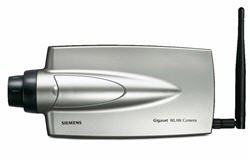
Siemens gigaset WLAN camera Security problem

The Siemens gigaset WLAN camera has a big security problem.
Telnet and FTP, port 23 and 21, are completely open to this camera. Anyone can connect to yourcameraIP:23 with a telnet client as root and access the linux router running in the camera without even the need for a single password.
On connecting the camera returns:

Linux 2.4.19-uc1 (SI4e7141) (ttyp0)


SI4e7141 login: root
Welcome to
_ ____
____ ____ __| |___ ____ _ _ \ /
/ __]___ \/ _ | _ \| __ \| | | ||\\//|
| (__( (_) )(_) |(_)_) | | | |_| ||//\\|
\____]\___/\___/\____]_| |_|\____| /__\

Embedded Linux Solutions

For further information see:
http://www.cadenux.com/web/bsp


BusyBox v0.60.3 (2005.08.22-11:11+0000) Built-in shell (msh)
Enter 'help' for a list of built-in commands.

help does not work.
# help
help: not found
#


Possible commands are:

cat
cd
date
df
du
echo
exit
free
hostname
ifconfig
kill
killall
ls
lsmod
mount
nslookup
ping
ps
pwd
reboot
route
set
uptime
whoami


The password of the wireless network is then clearly revealed in a 'file' and open to any visitor who has the capability to use a Linux terminal. Read the 'password file' with the cat command.
No password needed. Ever.

It seems Siemens has no clue about network security. Siemens has no firmware upgrade even though adding a secret password to user root is essential for this to be a usable and save product. Be warned, don't use this camera without adding a firewall.

Monday, April 10, 2006

Siemens gigaset WLAN camera


The Siemens gigaset WLAN camera and its hidden features.
This is not in the manual.

This IP WLAN camera comes with Windows software and can be viewed with internet explorer together with active X.

If you need to the stream can be picked up by any application that can handle .ASF streams.
The stream is found at:
http://-your url-/img/video.asf
With this URL you can watch the camera with many mediaplayers that can open the .ASF format like WinAmp and Windows Media Player even if you are not using Windows.

To make the stream available over the internet and inside the LAN via a router, use an extra port besides port 80. For instance use extra port 1080.
In the router add a port foreward from 1080 to -IP-camera-:1080.


Inside the LAN look at port 80, outside the LAN via the internet, look at port 1080.

Check the article about a security problem with this camera.